
Another day, another AI keywording tool to test
I received an email from Philipp, an enterprising developer who had seen my earlier article about AI Keywording using Cyberstock where I compared the results with the platform I used most, PhotoTag. (Affiliate link).
He explained he had a different approach which removed the need to copy and paste keywords and descriptions directly into the file. His approach uses a Chrome extension which is activated when you are on the upload screen of a stock agency that his system supports and generates the relevant metadata directly in the upload page so that all you have to do is click “Submit”. His website describing the Autokeyworder is here.
So far, he supports Adobe Stock, Shutterstock then Displate, Zedge and TeePublic – the last three are completely unknown to me. So, for now, let’s say Adobe Stock and Shutterstock. It is pretty clear that this is miles away from my normal approach to uploading which I did describe at length in that previous article about AI keywording and, in a nutshell involves creating the metadata offline in Lightroom and then using Stock Submitter/Microstock Plus to upload the files to eight stock agencies. It used to be more, but we have all seen the demise of various agencies over the years. Microstock Plus does both upload and submission and so I never visit the stock agency sites at all.
I decided to at least try it and explain how it worked for me, in case this suits your approach to uploading stock photos, and I had one image sitting in my Lightroom library that I had intended to submit at some point and had no metadata.

Clearly destined to be a top seller!
I had previously installed the Chrome Extension I exported this as stock photo from Lightroom and found my way to the Contributor page on Adobe Stock. Uploading the 11MB image took a little time, and then I had to log into the extension, but it did then quickly analyze the image and directly entered the information into the appropriate fields. It is not a very complex image and doesn’t require the AI to decide what the location of a travel photograph actually was, but it did a good job of coming up with some keywords that described this particular image in the priority order that Adobe requires.
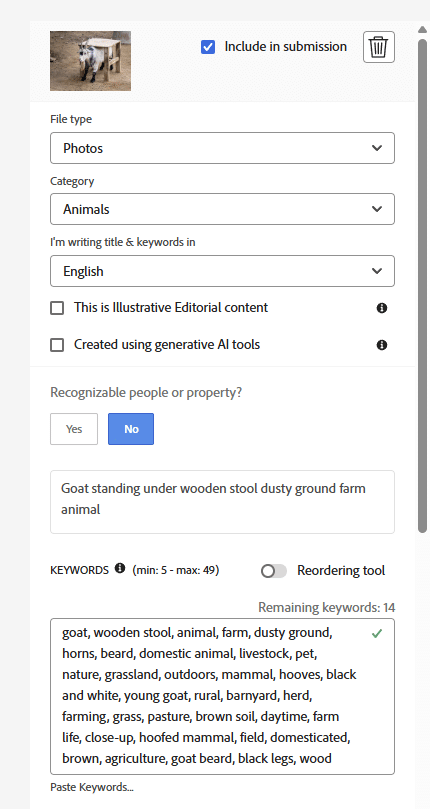
The addition of the keywords might have been smooth with Adobe Stock, but when I clicked the “Submit” thinking that I had uploaded my first image, I was then faced with the check boxes to say I understood the rules, then I had to solve a puzzle where I found images of cats in a selection of thumbnails, then I had to describe (in more than 5 words) what another picture was displaying. So, not that smooth for me!
I guess if you were just starting in stock photography and had chosen Shutterstock and Adobe Stock as your first agencies, then I’m sure this would work for you. Seems to come up with good keywords and if you were already going to those two agency sites to keyword and describe, then it would save you some time.
For me – it is just a non-starter, I’m afraid.