
ArtushVision AI Review: Restoring Lightroom Keyword Priority & Getty Mapping
The Bot Blocks: Why Legacy Upload Tools are Struggling
I have been a regular customer of Stock Submitter and its online partner Microstock Plus for many, many years, paying to upload and submit my images to all the major sites. While there have been occasional glitches, it has traditionally taken a massive operational load off my shoulders, and their approach to handling the controlled vocabulary for iStock has been pretty smooth.
But not any longer.
The stock agencies have been implementing increasingly complex security measures to deter external bots from scraping their content for AI training. While it is hard to complain about agencies trying to protect content and extract royalties for contributors, systems like Stock Submitter inherently behave exactly like these scraping bots. As a result, site after site has become problematic:
- Pond5 has become unreachable.
- iStock currently fails to connect.
- Shutterstock sometimes works
The Microstock Plus solution for these sites now requires their new parallel Windows desktop program paired with wide-ranging PC permissions and a secondary Chrome extension. As far as I can see, it essentially logs into each site and drives the submission process locally as if I were manually clicking through it.
Essentially, I no longer know how these automated background systems are working, even when they do. While smaller agencies like Pond5 or 123RF aren’t primary drivers of my monthly earnings, losing the ability to submit means supporting fewer platforms, making the baseline cost of using Stock Submitter much less attractive.
So, what are the alternatives? Perhaps moving to a more DIY solution supported by my current favorite AI-based tool, ArtushVision AI. So what are the steps to achieving that?
The Lightroom Dilemma: The Search for a Non-Destructive Workflow
As I have noted before, I am uncompromising about maintaining my original RAW files and their accompanying metadata directly within Lightroom Classic. My catalog contains over 150,000 images stretching back nearly 20 years. If I ever need to locate an old image to reprocess it or export a high-resolution print master, keywords are my only lifeline.
The fundamental flaw with the vast majority of AI keywording tools on the market is their outward-facing workflow. They assume you export a finished JPEG first, keyword it inside their siloed system, and leave your master catalog in Lightroom completely blind to those terms.
That was until I started working with ArtushVision AI. It has rapidly evolved into the Swiss Army Knife of metadata management, granting complete architectural control over which AI model you deploy for specific commercial objectives. I have previously covered the mechanics of handling AI keywording for raw files and using advanced metadata strategies for fine art healthcare consultants, but a few critical pipeline links were still missing.
I have just finished testing a new release of ArtushVision that introduces prioritized keyword restoration, managed FTP distribution, Local AI system support, and a highly intuitive interface for handling Getty/iStock controlled vocabularies.
One-Click Fix: Restoring Search Priority to Lightroom JPEGs
Lightroom possesses an incredibly frustrating native quirk: it automatically alphabetizes keywords within the catalog. Because several major agencies require prioritized keyword strings (placing the most important conceptual terms first), Lightroom effectively destroys the commercial search relevance upon export into JPEGs.
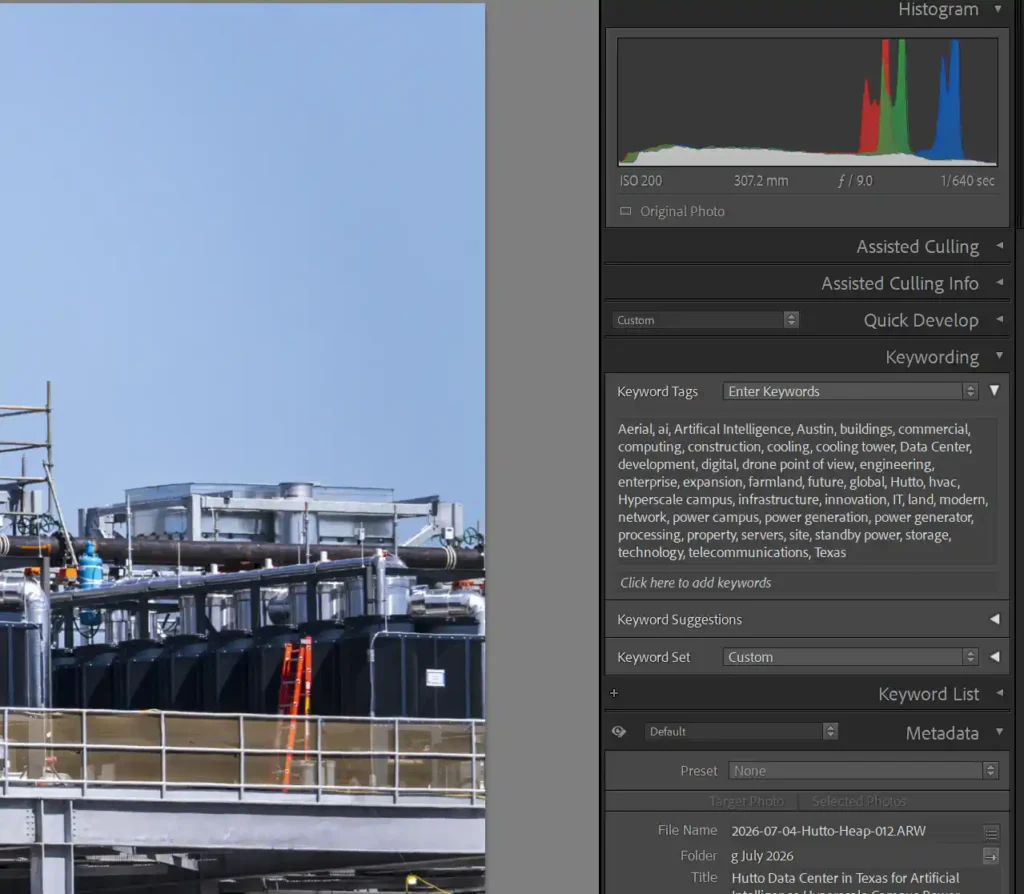
The mechanics of this update are remarkably elegant. My workflow begins by writing Lightroom metadata to local .xmp sidecar files. While this might seem counterintuitive since no keywords exist yet, it ensures that my existing develop settings are safely locked in and won’t be overwritten during this external process.
When I point ArtushVision at my folder of Raw files, it ingests these sidecars, displays the RAW image thumbnails, and lets me run my customized prompt against the AI model of my choice to generate tailored titles, descriptions, and prioritized keyword arrays. These are saved straight back to the sidecars and read into Lightroom so that my original files are fully indexed for future use.
Then, having chosen which files are ready for the stock agency, I export my JPEGs, and, of course, Lightroom forces the keywords into alphabetical order. ArtushVision bridges this gap with a new one-step patch:
- Open the target JPEG folder inside ArtushVision.
- Select the batch, right-click, and select “Restore keyword order after LR export.”
The software instantly rewrites the original priority array directly into the JPEG headers, completely bypassing Lightroom’s structural limitations in a single click. My JPEGs are ready for upload to the stock agencies.
FTP Uploads or Stock Submitter?
ArtushVision now includes a fully managed FTP option to get those prepared JPEGs to the agencies that matter – a smaller number each year! I haven’t fully explored this yet and so, for now, I just use Stock Submitter on this folder and upload to the main agencies it supports. One major change for me though – I no longer use Stock Submitter or Microstock Plus for iStock.
Taming the iStock/Getty Controlled Vocabulary
The second major pillar of this update is the new Getty Optimizer utility. Rather than stepping into a detailed tutorial, which you can find on the developer’s website, it is best to look at a higher level at the practical solution it provides for handling Getty’s notoriously rigid metadata engine.
My JPEGs are already visible in ArtushVision after the previous step of restoring the keyword order. If you are not someone who keywords first in Lightroom, you would simply open your folder of JPEGs in the App and start the AI keywording process. If they are already keyworded, then you are ready for this next stage to match keywords to the Getty terms.
As a first step right-click all the files and in the Category section you can add the Country that Getty/iStock requires.
Right clicking one or multiple similar images provides access to the Getty Resolver interface which aggregates your embedded keywords and automatically cross-references and matches them against an internal dictionary of official Getty concepts. You can instantly scan the batch to confirm matches or choose an alternative if it selects an incorrect term.
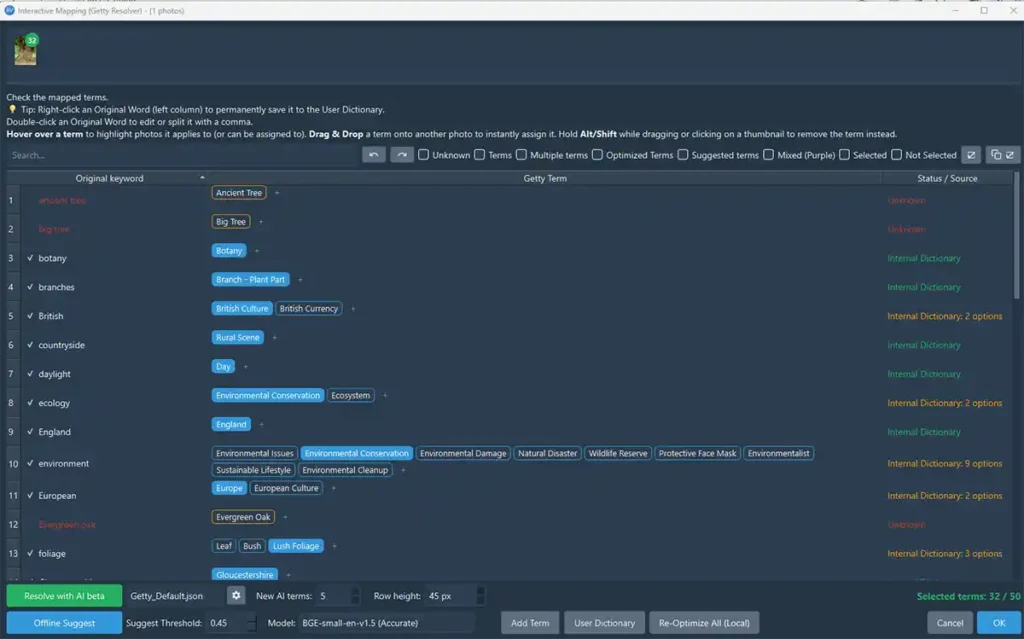
Because no independent software has access to Getty’s complete proprietary directory, Artush has introduced a highly effective workaround for missing terms—particularly localized geography. For instance, when keywording my recent trip to Castle Combe in the Cotswolds, the village name naturally wasn’t in the default internal database. Artush allows you to retain these unmapped terms alongside the recognized terms as they transition to submission. If you explore this area in more detail, there are both local and external AI models that can be used to find any other Getty terms that might fit the image. I found that the “Resolve with AI Beta” actually is pretty useful. It does suggest Getty terms that you may have missed, but more importantly, it deselects any keywords that do not have a match. I still scan the list and select ones that I think are important, but it does save quite some time.
To push these finalized, compliant assets to iStock, you can deploy one of two methods:
- The CSV Route: Export a structured spreadsheet containing the localized vocabulary mappings and import it alongside your files into the Getty ESP portal.
- The Smart JPEG Route (My Preferred Method): ArtushVision generates a mirrored copy of your JPEGs in a adjacent directory, embedding both the resolved Getty terms and any unmapped keywords directly into the file.
By pulling these modified JPEGs into DeepMeta, the vast majority of your terms—including critical regional geographic names like Castle Combe—are instantly recognized and approved on import. Any remaining outlier words can be moved to the “Candidates” field, keeping them fully searchable on iStock without halting the submission queue. I can create a batch, upload the images and check the keywords in just a few minutes. Definitely not worth bothering with the convoluted Microstock Plus iStock submission process any longer.
Customizing Your Personal Dictionary
If a specific historical term, niche keyword or location is accepted by Getty but missing from Artush’s core database, you can simply right-click the word to save it to your private user dictionary. For future images, the system will then recognize your custom vocabulary natively, permanently streamlining your local upload pipeline. You can also add the correct version of a keyword – for instance, I had entered River Severn into many of my files, the correct version is Severn River, and so I was able to add that as a keyword to be converted.
More reviews to come!
I don’t think I plan to install a local AI model. With all my keywording and tests, which include developing new keywords for the Art Consultant project I described before, I have spent a total of $0.85 on Open Router and the various AI models it provides access to. However, I do want to explore the FTP approach and see how that compares with continuing to pay for the Stock Submitter packages. When I have had time to do that properly, I’ll come back and write more about this comprehensive package.
Conclusions about ArtushVision AI so far
I must admit that I am very impressed. From handling keywording of raw files, resolving the annoying Lightroom habit of sorting keywords alphabetically with one click, providing a smooth and intelligent solution for the Getty/iStock controlled vocabulary, giving you the ability to use higher powered AI models for more complex metadata (or a local model if you prefer), and now the managed FTP solution, this is very hard to beat.
You can buy the full one-time license here using my affiliate link if you don’t mind.


Awesome! Can’t wait for the update.
I have so many images to keyword and then upload that I really need to understand how best to tackle that final stage of getting them into the agencies. I’ve run out of Stock Submitter submissions now until mid July, so that might be a reason to investigate more fully.
I got a little excited and then discovered it is a Windows-only application. Oh well, no room on my desk for another computer and no time to relearn the Windows OS.
I’m sorry – I should have mentioned that. And yes, stick with your Mac!