
Field Test: AI Keywording Solution – ArtushVision AI
At long last, an AI keywording system that is flexible enough to handle exported Jpegs all the way through to Raw files fully integrated into the Lightroom catalog – and videos as well! And you can directly tell your chosen AI model just what your requirements are or use a local AI model running on your own computer to completely remove any privacy or cost concerns. Incidentally, the comments below have some useful discussions beyond the aspects covered in my test report, and I have written two more articles about different ways of using this application, for Fine Art Print metadata and for a B2B art portfolio.
Let me say, right from the start, every AI keywording system I have looked at before didn’t fit my process. This one is so flexible that it probably fits everyone’s process, including mine. I think that this is a highly impressive tool for stock photography metadata and much more than a simple AI keywording generator. I came across it when I saw a post on the Stock Photography Reddit group (I think there were two that day about AI systems!) and the developer contacted me, having seen my earlier tests and reviews of AI Keywording, to see if I wanted to do a deep dive. The system is called ArtushVision AI and there are two versions – a free version that you can use to test, and a paid version that is the full Professional solution. That costs a one-off fee of $39.99. (This is an affiliate link as I was sufficiently impressed with the solution to seriously recommend it!). It can be used in about 20 different languages and can also translate the metadata between languages as well.
The App is actually quite a complex mix of manual metadata editor, an AI extension to generate titles, descriptions and keywords, a folder browser somewhat similar to Bridge, and much more besides. It can handle Raw files as well as TIFF, Jpeg, PNG and also video files, and can recognize the flags, ratings, keywords and location data etc. that might already be in place if you use Lightroom Classic. It can directly update the xmp files with the new metadata, create csv files of the metadata, handle single and batch metadata updates and more critically of all, it connects to Open Router via an API so that you can choose between what seems like a hundred different AI models from the most basic to the most complex and powerful. You can specify, in your own specific JSON profiles, exactly what you want the AI model you have chosen to do, and you pay for the AI usage separately through OpenRouter. I bought a credit of $5 on OpenRouter and so far, I have used 6c of that in my testing. The credits you buy stay active for 12 months. Why all that is important will be explained below but the bottom line is – I really like this solution as I feel I am completely in control of what I want the AI to do!
How to Link Lightroom Classic to ArtushVision AI for Stock Keywording
I wrote about my approach to using LR Classic as the core of my system here. Of course, you can use this system without any involvement from Lightroom, but, basically, I want to keep all my selected images keyworded in LR because I have 140,000+ of them and I want to be able to find a file taken any time in the past 18 years in case I want to redevelop it or maybe use it for a print. I select the ones that I have worked on with a flag, and I mark editorial stock photos with the flag and then a one-star rating. Pretty much all images that are flagged have keywords. Perhaps just a couple of keywords if they are personal images of family, with up to 50 if they are destined for a stock agency or print on demand site.
But raw file metadata is not stored in the raw image itself. It can be if you use the DNG format that Adobe developed, but in that case, every time you make a change to a keyword, a description or a develop setting, the file itself is updated, which means that my backup routine spots a changed file and decides to back it up again, keeping older copies on the backup drive. Yes, that would work, but I see it as somewhat messy! The metadata for my raw files is stored in the LR Catalog database, and I do regularly back that up (including to cloud storage), but there is nothing in the file itself that shows that metadata. But there is a workaround – xmp files can be created on the disk that store the metadata and develop settings in a simple text like file. XMP files act as a lightweight, text-based bridge. Lightroom writes your core keywords to the XMP, ArtushVision reads that XMP, the AI adds the rest of the metadata to it, and Lightroom reads it back. The heavy RAW file is never touched. Of course, if you are just keywording exported Jpegs and are not interested in keeping those in a LR catalog, it can easily read and write those ready for upload to the stock agencies or PoD site.
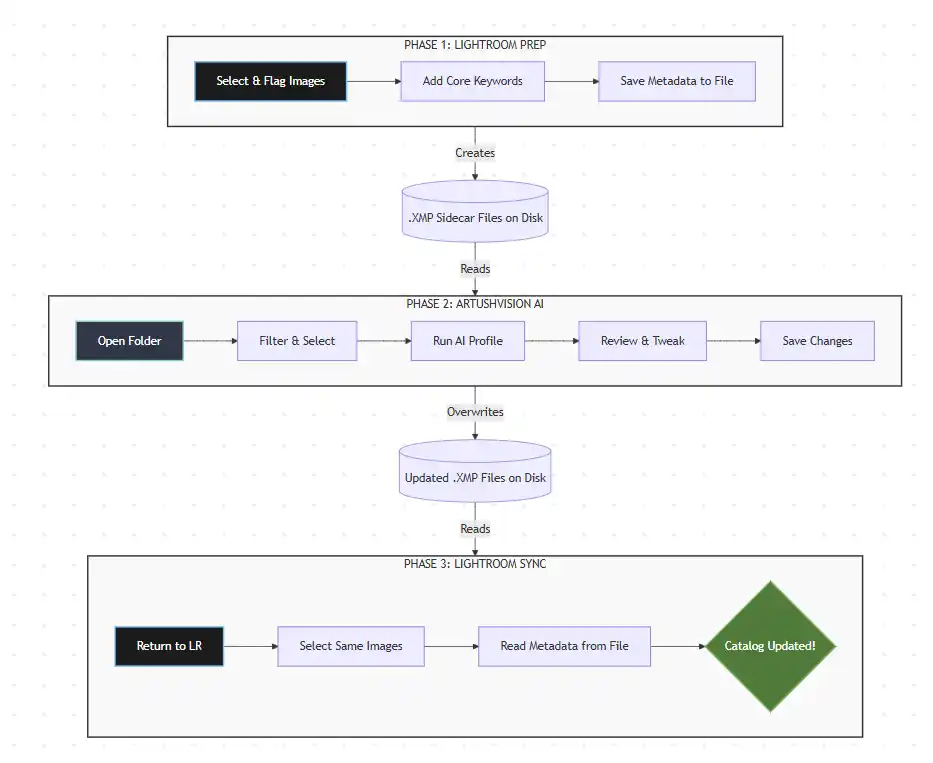
Warning: The Lightroom XMP Auto-Sync Mistake to Avoid
Here I made a big mistake! There is a setting in Catalog Settings:Metadata to automatically write metadata into these companion files. I mistakenly thought that if I checked that, it would start to write xmp files just on images that I was making changes to now. But no – it scans the entire catalog to identify any changes in any of those 140,000 images and determined that 132,000 of them have some sort of change that requires the creation of an xmp file or, in the case of jpegs, Tiff files, DNG files and PSD files, it decided it could write the metadata into the file itself. For some reason, whatever, I did, I could not turn this off. I could deselect the option, but somewhere in the depths of LR, it had this list of 132,000 files to update and it continued to try to do it. I “talked” to Google Gemini at length, trying various options, but I couldn’t stop this process from restarting each time I tried to just save the data for one file to disk. In the end, I created a brand-new catalog and imported all the data from the old one into the new one. Unfortunately, that didn’t immediately solve the issue and finally it seemed to solve itself. Who knows what the issue was! Incidentally, just to highlight what constantly worries me about relying on AI models, my paid version of Google Gemini Pro told me that this creation of a LR catalog for 145,000 images would take from 10 to 45 minutes. It took take 24 hours and luckily there is a hack to rename your old previews catalog to the new catalog name so at least you don’t have to regenerate that.
My process for updating metadata now from Lightroom to ArtushVision AI
I’ve struggled with all previous offerings of AI keywording systems because they assume, to various degrees, that the exported jpeg needs to have metadata added to it and then it would go to the various stock agencies. Some take this to extremes by creating different versions for different stock agencies. But they all resulted in me having to create a jpeg that they could work with, then they could create their metadata, then I would copy the title, description and keywords and go back to the master file in LR and paste into the relevant fields. I had to do that for every file – sometimes using the LR sync process, sometimes just simple copy/paste. So, I was never happy with the process.
This one is different. My files don’t normally have GPS coordinates (although ArtushVision can read those and take them into account) but we chatted about this and the developer added a lot more flexibility in the system so that existing keywords will give the AI system a hint about the specific location or building in the image as well as reading the sublocation, city, state, country metadata fields. He has also added a “hint” entry box where you can tell the AI system a key fact or two about the images, but as I have multiple different locations or images of specific buildings in a shoot or in a folder, I prefer to add my own location and building identification in the keywords first. In that way, if an image was taken of a historic courthouse in a specific Texas city, I can enter the full name of that courthouse, perhaps the county and certainly the name of the city itself into keywords in Lightroom. One indication of the flexibility of this approach to an AI system is that I was able to use Google Gemini to create my own specific JSON profile which is passed to my own choice of AI Model to take account of those specific keywords. I specifically told the AI model not to invent a location based on its analysis of the image itself. AI Models are quite good at assuming that Texas Bluebonnets in a field near a lake must be at Inks Lake, because they are often found there. We were able to tell the model not to invent a location but to use my keywords and location metadata as a “fact” in coming up with the title, description and metadata.
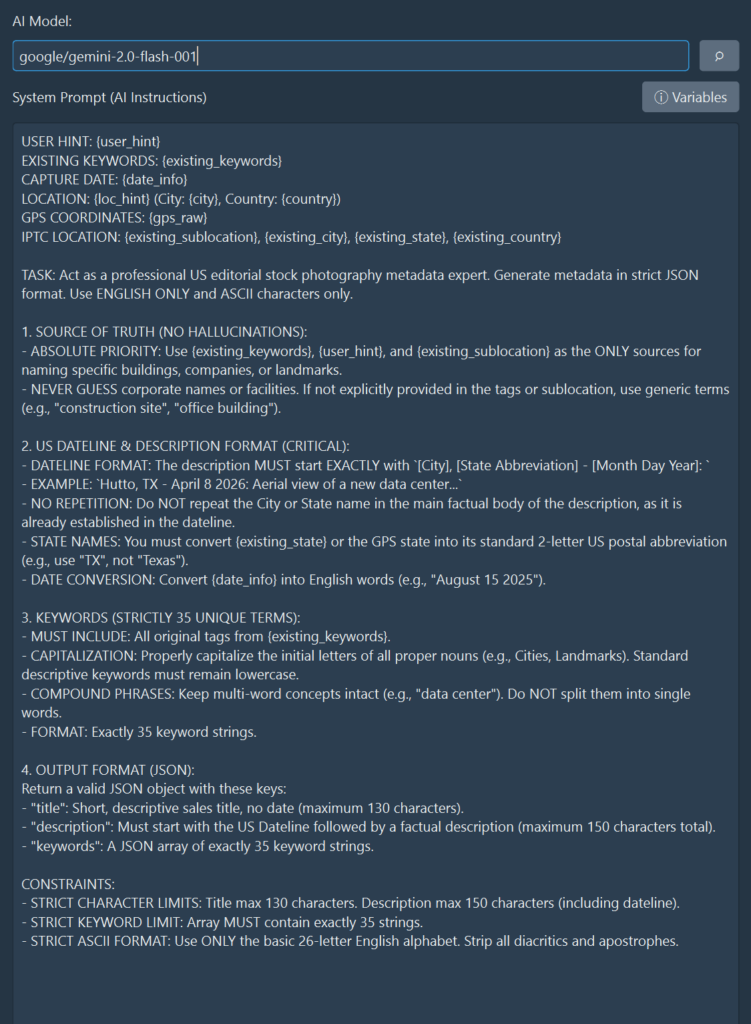
This AI profile was told to keep the number of keywords to 35, keep the title to less than 130 characters and the description to less than 150 characters. Strangely, AI systems can’t count very well when they are “making up” a description and so you need to specify different ways of achieving that objective. In the end, this was our chosen AI profile for a USA editorial image. The developer of the ArtushVision AI has provided a number of example profiles for different uses, including an editorial version, but I loved the way I could take one of those and mold it to my own specific needs. The editorial version creates the city, state/country plus shoot date format in the description that most stock agencies accept.
Opening the disk folder in ArtushVision AI
My keywording process then is to add those few keywords to the relevant files in LR. Select all the files all and use CTRL-S to save the metadata to disk. In reality what this is doing is to create those xmp files that are associated with the raw files in the same folder. I then move to ArtushVision AI and load that specific folder. Thumbnails are quickly prepared and I see a grid of all the files in that folder together with their current metadata.
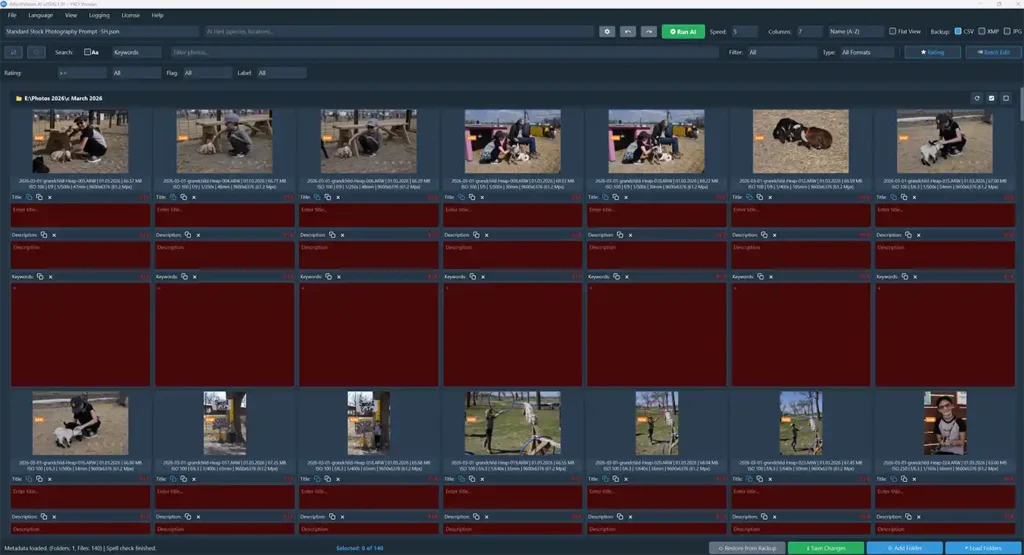
At this stage, all the images in the folder are there. But I can now choose to select those images that are flagged. I can also choose those with ratings as well (the editorial ones) or I can select by keywords. I now see just the images that I want to keyword. There are App wide settings you can configure to highlight in different colors those images that have no keywords, those with more than 50, say, those with titles between a minimum and maximum number of characters and so on. I can see images where the description is too long for Alamy, say, highlighted by color. This overcomes one of the issues with Lightroom that it doesn’t actually tell you the number of characters in a field.
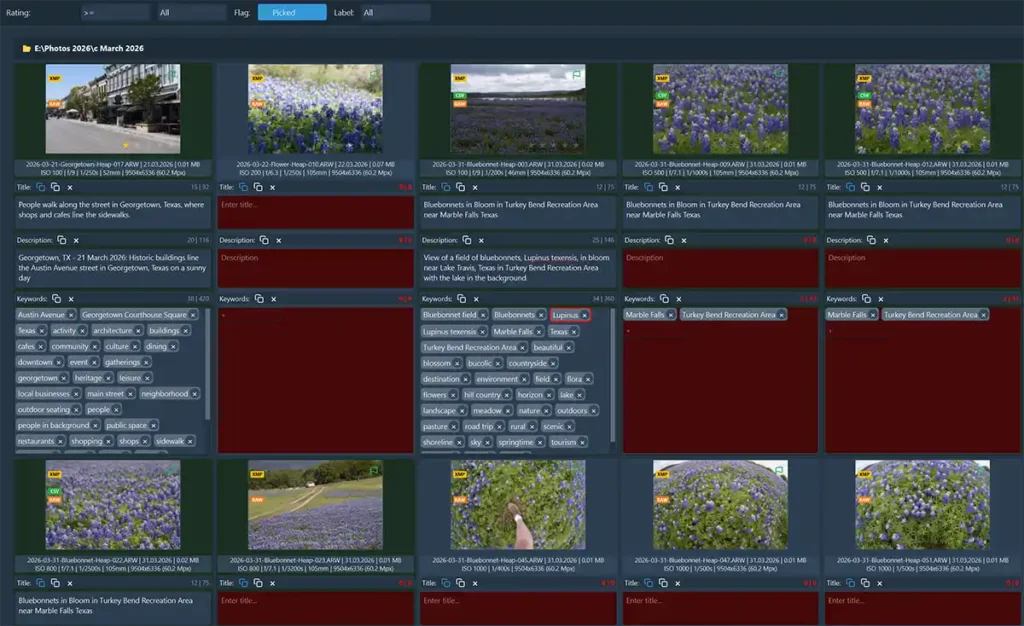
I can select one or more images by clicking on the thumbnail and choose the relevant AI profile. I plan to have one for commercial stock, one for editorial that will produce the right format of description and one for uploading to PoD sites where I have other constraints on the title and want a longer more artistic description. The chosen AI model does its stuff, and the metadata is returned and populated into the file details.
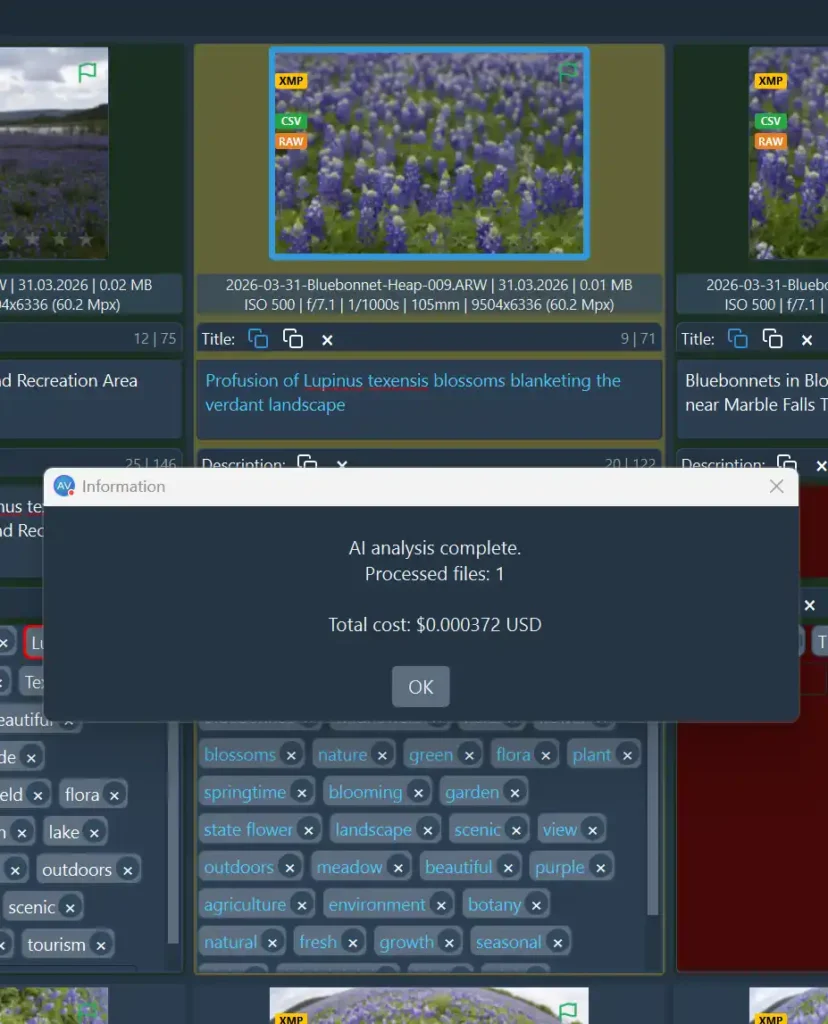
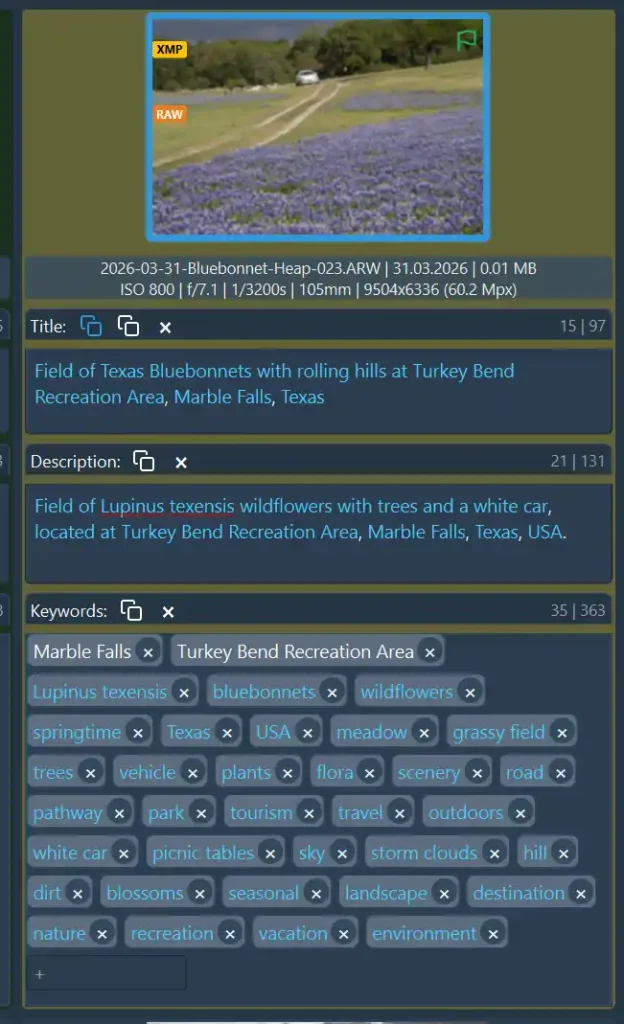
How well does the AI system work – well, it is really in your control. You can change the instructions, choose a more capable AI model or just take what comes back and modify it a bit. I have specifically instructed the AI model to use my specific location and not to guess at that, but then to look at the image itself and determine what is in it. In this case shown above, it saw my car in the distance and the pathway leading to it. Not sure about the storm clouds – I think that was darker hills in the background, but nothing is perfect!
I might add one or two keywords of my own at this stage and perhaps modify the description and then I can use the App as a manual keyword system by selecting all the metadata in a specific image and copy it to other similar images. I then do another AI run on the next different subject or location. All the new metadata is still in the App at this stage, but once I am happy with it, I save the changes to disk, which updates the xmp files (the raw files are untouched). DNG files, which can hold metadata, are updated, but the file date/time remains the same, so that it still reflects when the image was processed.
Finally, return to LR and choose Read Metadata from Disk and all the new details are imported into the catalog as if I have copied and pasted it one by one. Quick and easy!
Next Steps for my process
I have spent quite a bit of time running different images through the system and have had no more Lightroom specific issues. I have completed my full process by exporting the images from LR, into Stock Submitter to get them to their destinations at the stock agencies. I then plan to repeat the process of using ArtushVisionAI to use the AI model as though it was a potential consumer buyer of an image for a piece of wall art and have a longer more artistic description. I learned some things about Google Search which I explained in this article about why your print files never appear in Google Search results and those can be applied in a different AI profile specifically aimed at fine art sites. Those fine art images will now have different metadata that has overwritten the “stock” metadata and I can export those to large high-quality jpegs for upload to my Print on Demand sites.
Conclusions For Now
I’ve been really impressed so far! I found some approaches in the first version I tested last week that could have been improved, and he responded with a full upgrade this week, which has been very stable. The developer is incredibly responsive to feedback from professional contributors, quickly pushing updates to fix bugs or add new variables (like specific keyword tags or the highly specific “sublocation” that is available in the xmp metadata) based on real-world stock workflows. His website has very full and comprehensive instructions and example videos and the underlying architecture allows you to either use his AI profiles or basically design your own to fit your needs. You could have several profiles – one for stock images of objects, one for travel type photography and one for people if you do that. I’m going to have a USA editorial profile and an “international” one. And separating out the App cost from the cost of running the AI models allows you to both choose your model (as some are more expensive than others) and not have a recurring monthly cost for credits through the App. I rate this one a Buy and if you are interested, please use my affiliate link!
I’ve written several more articles about using this system as I have investigated further. You might be interested in:
These will open in new tabs to make it easy to go backyards and forwards. Finally. you might have noticed that I did have Google Ads here for a few weeks to monetize the site, but I decided they annoyed me and they have now gone – hence the occasional affiliate links for systems that I really use myself.


Thank you for Sharing. Does the system actually cross-reference our existing Keyword List in Lightroom when syncing? I’ve run into an issue where the AI is generating new, duplicate keywords instead of mapping them to my controlled vocabulary. It’s breaking the hierarchy and creating a lot of cleanup work
It doesn’t know about the controlled vocabulary if you have created that in LR. I have never thought about doing that and so all my keywords are flat – no hierarchy. I often capitalize the first letter of a new “proper noun” such as a plant I haven’t submitted before, so that the capital first letter stays in LR and is exported like that. StockSubmitter puts capitalized words first, which helps with Adobe Stock and other sites that want the most important keywords first. So, when I save the xmp files from LR, any keywords I have already added to the file get saved into the xmp. ArtushVision loads them in and the AI uses them as prompts for what the image is about. The new AI Keywords are added to that list. I save back to xmp and then read that file back into LR. So, the new keywords get imported into the LR Keyword list – if they are new, they stay as a new keyword. If they match an existing keyword, they are just recorded as a new instance of that keyword. It doesn’t add a duplicate. Now whether that works for your system – I’m not sure!
Steve
Hello, thanks for this great tip. I tried the trial version of ArtushVision AI, and it is exactly what I need!
My workflow involves keywording outside of Lightroom on the exported JPGs, but that is all perfectly supported.
I just need to figure out a bit more precisely how to set my own preferences exactly using JSON files.
I will also be writing about this soon on my own (Dutch-language) website about stock photography (https://www.kruwt.nl).
I registered using your affiliate link.
Kind regards, T.W. van Urk
Yes, I’m impressed with the flexibility and the ability to customize it for exactly your own needs. The way I tackled the JSON files was to copy the text inside one of the author’s example files, and put that into a query with Google Gemini and also made sure that the AI was aware of the process I was following and what to expect in the files themselves. Then I asked the AI to pretend to be a skilled stock photography keyworder and to come up with a JSON that met my specific needs. In the early days of testing, we didn’t have all the variables that are now in the system, so we went backwards and forwards trying different approaches. But now, I can pretty much ask for my needs and I get a JSON that worked. I’m sure you could do that in Dutch just as well.
Glad you are liking it!
Steve
Any way to revise uploaded stock images after running them thru Artushvision?
It depends what you mean by that. You can run a JPEG through the system as many times as you want as it is only the metadata in the file that is updated. I’ve done that when I want to upload a file to a print site. If you have already uploaded the file to an agency, then you could get revised keywords by running the same image through the app, copy the keywords and then replace the previous keywords on the agency using whatever tools they provide you with.
Do you have any solution for keywords searching in your portfolio? What I mean: sometimes it’s better to find similar photo in your portfolio and just copy-paste keywords to the new photo. But there is a problem. Adobe Bridge is slow when it need to load and search 10K and more photos. Lightroom classic is fast but it sort keywords alphabetically.
I agree, that’s quite an issue. I used to copy the keywords in LR to the new file. They were in alphabetical order, but as all that batch go via StockSubmitter, where I sort out some key words, it doesn’t make a great deal of difference. I also have started capitalizing important words that I would like to come higher in the order and StockSubmitter automatically puts those first. I think now I will ignore the fact that I keyworded them first and put all my new files through this artush system and get new keywords for files. Better than have something different to old ones. I wonder if this AI system could do an export to JPEG while the new keywords are in the priority order? That could be interesting. I’ll ask the developer.
Hi Stanislav, hi Steve,
The alphabetical sorting is a hardcoded architectural design inside Lightroom’s core database structure, so there is unfortunately no way for a third-party application to change how Lightroom or Bridge forces that A-Z rearrangement.
To answer Steve’s question about exporting: instead of a complex RAW export process, ArtushVision AI solves this problem at the metadata level using optimized CSV backups. Here is how this workflow protects your keyword priority and SEO value:
Strict Priority Order: The application generates CSV files where your AI-generated keywords are locked in their strict, descending order of commercial relevance (key subjects first, background elements middle, conceptual moods last).
The CSV Override: When you use the CSV upload feature on major platforms (like Adobe Stock or Shutterstock) or import that CSV file into tools like StockSubmitter, their systems read the metadata rows directly from the spreadsheet.
The Result: The CSV data takes absolute precedence. It completely overrides and ignores whatever scrambled A-Z keywords Lightroom embedded inside the JPEG binary headers.
This simple workaround allows you to keep your existing Lightroom catalog workflow completely intact, while fully protecting the commercial weight of your first 10–50 keywords during submission.
Best regards,
Developer of ArtushVision AI
Hello Steve
By now, ArtushVision AI is also my favorite tool for my metadata.
I have written two articles about it on my own website https://www.kruwt.nl
– https://www.kruwt.nl/beste-ai-tools-voor-metadata-en-trefwoorden-bij-stockfotos
– https://www.kruwt.nl/mijn-favoriete-ai-tool-voor-metadata-en-trefwoorden-bij-stockfotos
Both are in Dutch, but perhaps you can read them with an automatic translation.
Thanks again for the tip and until next time :-).
Kind regards, TW van Urk
That’s great to hear! I’ll check out the website.
awesome app. used flawlessly for weeks but recently getting error messages on running ai and got ssl certificate bad message last several days.
I’m away from home and so haven’t been using recently, but I think the cheapest Google AI model can get congested and busy. Sometimes I used one of the other choices that are a bit more expensive to run.